
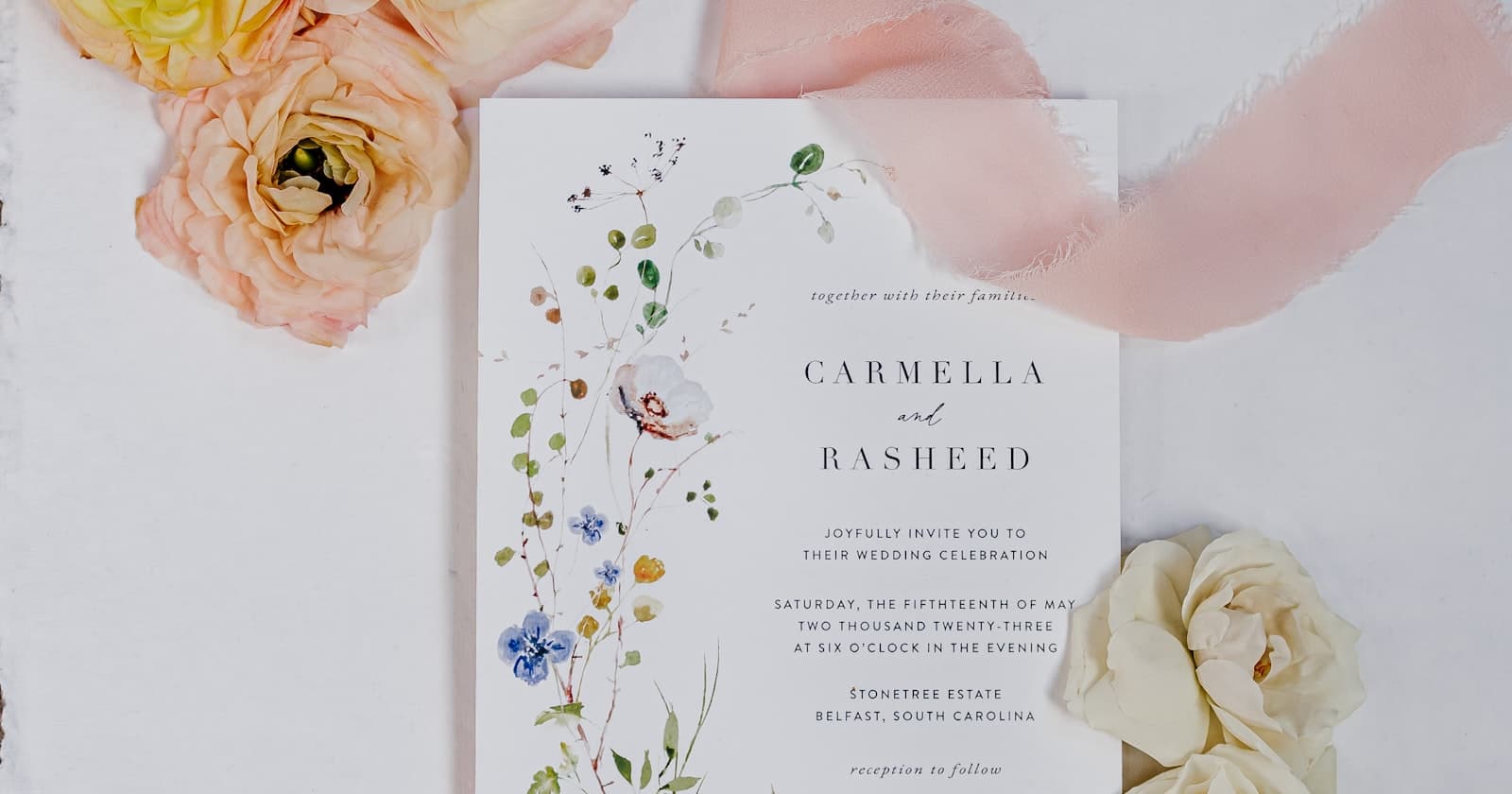
You do not need a designer on retainer to figure out how to create a digital wedding invitation. You need the facts in one place, a format guests can actually open, and a send plan that matches how those people already message you.
This is a transactional walkthrough: gather details, pick a format, write the copy, add RSVP and maps, preview on a phone, send via text, email, or WhatsApp, then track replies. If you want the "what even is a digital invite" primer first, read the digital wedding invitations guide. For the words on the page, keep digital wedding invitation wording open in another tab.
How to create a digital wedding invitation, step by step
Work the steps in order. Skipping the phone preview is how you send a desktop layout into a group chat.
| Step | You finish when... |
|---|---|
| 1. Gather details | Every event has a date, time, venue, and dress note |
| 2. Pick a format | You chose a PDF/image or a web link, on purpose |
| 3. Write copy | Names, ask, and RSVP deadline fit on a phone screen |
| 4. Add RSVP and maps | A guest can reply and navigate without texting you |
| 5. Preview on a phone | You opened it the way a guest will |
| 6. Send | Each household got a personal note plus one URL |
| 7. Track replies | You know who is in, who is out, and who is silent |
Step 1: Gather the details before you open a tool
Open a note. Not a design tab. List every event a guest might attend.
For a typical weekend that is rehearsal dinner, ceremony, and reception. Add welcome drinks if you are inviting people to those too.
For each event write:
- Official name (as you want it to appear)
- Date and start time, plus time zone if guests are flying in
- Venue name, street address, and a maps link you have tested
- Who is invited (everyone, or a smaller slice)
- Dress code in one line
- Anything that prevents a wrong turn: parking lot, hotel shuttle, "use the side door"
Then list the couple names exactly as they should appear, the host line if parents are on the invite, the RSVP deadline, and a contact who will actually answer a confused text.
If two people disagree about the rehearsal time, fix it here. A digital invite is easy to edit. It is still embarrassing to send the wrong hour to 80 people and then patch it.
Step 2: Pick a format - PDF versus a web link
"Digital" is not one object. Guests experience two different things.
| Format | What you send | What it is good at | What it drops |
|---|---|---|---|
| PDF or image | A file in a message or email | Control over a single designed face; print-at-home | No live RSVP, no tap-to-map, ugly in some chat apps |
| Web invite | One URL | Scroll, RSVP, maps, multi-event, edit after send | You need a tool that hosts the page |
A Canva export is a file. A cinematic web invite is a page. Do not call them the same thing when you brief a parent.
Choose a PDF if you have one event, you already have a paper suite look, and you will collect RSVPs somewhere else (a form, a website, a phone tree).
Choose a web link if guests will open this on a phone and you need rehearsal + ceremony + reception without attaching three files. Vow Invites is that kind of page: one link, a scroll, RSVP, maps. Open the demo if you want to see the shape before you write copy. Creating an invite is a one-time slot, paid before you start.
Email stationery tools (Greenvelope, Paperless Post) sit in a third bucket: a card that arrives in an inbox. They are digital. They are still not a multi-event scroll. Use them when the inbox is the channel.
Step 3: Write the copy like it will be read on a train
You have a few seconds before someone flicks back to the chat. Lead with names, the ask, and the main date. Put poetry after the facts, or skip it.
A working skeleton:
- Host line or "Together with their families"
- Couple names
- "invite you" / "hope you will celebrate with us"
- Primary event: day, date, time, venue
- Other events, each in its own short block
- RSVP deadline and how to reply
- One practical line (kids, dress, weather)
Do not paste a printed-card paragraph onto a phone scroll and hope. Break it. If you need templates, steal structure from the wording guide and swap in your facts.
The message that wraps the link is a separate piece of copy. Two sentences, then the URL. Example: "We're getting married on 12 September in Lisbon - ceremony and reception details are here. Please RSVP by 1 August." That wrapper is what people see in WhatsApp or iMessage before they tap.

Step 4: Add RSVP and maps on the invite itself
If the guest has to screenshot an address and open another app from memory, you will get "what's the pin?" texts the week of.
Maps. One per venue. Test the pin from a phone on cellular, not only from your laptop on home Wi-Fi. Hotel names that autocomplete to the wrong city are a classic miss.
RSVP. Put the action on the same page as the invite. Yes / no, and extra fields only if you will use them (meal, plus-one, song). Every extra question lowers completion.
Deadline. Give a date you will actually enforce. Caterers need numbers. A soft "when you can" turns into silence.
Who can see which event. If the rehearsal is family-only, do not publish that address on the public link you send to the whole list. Either use a second page, or a tool that can hide events by guest. If your tool cannot hide, send two links.
Vow Invites includes RSVP and maps on the scroll. A PDF does not. If you chose a file in step 2, open a form now and put that form URL on the PDF. Two objects, one job, easy to lose.
Step 5: Preview on a phone (not only in the builder)
Email yourself the link. Open it on LTE. Then open it on a friend's Android if you live on iPhone.
Check:
- Names readable without pinching
- Times not wrapping into nonsense
- Map links opening the right app
- RSVP tapping without an account wall
- Link preview in iMessage / WhatsApp / SMS: title, image, not a raw domain
- Dark mode if your builder has one (white text on cream is a common fail)
Stand on one foot in the kitchen and try to RSVP with a thumb. If you hesitate, a guest will close the tab.
Fix type size before you argue about floral borders.
Step 6: Send via text, email, or WhatsApp
Match the channel to the person, not to your favorite app.
| Channel | Use it for | How to send |
|---|---|---|
| iMessage / SMS | US friends and relatives you already text | Personal note + link. Avoid a 40-person group drop. |
| Guests who already live there (common in Europe and mixed lists) | Direct message or a broadcast list. Groups bury invites. | |
| Older relatives, colleagues, anyone you would not text | Clear subject with your names and "wedding invitation." Link in the body, not only inside an image. |
Do not attach a 12MB video and also forget the URL. If you made a web invite, the file is optional. The link is the invite.
Send in batches if the list is large. Start with a friendly household and ask, "Did the preview look right?" Then send the rest.
A QR code on a printed card for elders is fine. Point it at the same URL. Do not invent a second RSVP path unless someone will merge the replies.
Step 7: Track replies and close the loop
The work is not over when the messages say "delivered."
- Watch the RSVP list twice a week after you send
- Nudge silence two weeks before your deadline, then once more
- Move "maybe" to a phone call if that person is important to the table count
- Update the page if a time changes - that is the advantage of a web link over a PDF you cannot recall
- Export or screenshot the list before you meet the caterer
If you used a PDF plus a form, you have two places to check. Set a calendar reminder or you will trust the wrong one.
People who never tap still exist. Budget time for them. Software does not remove your uncle.
A same-day checklist if you are behind
You can do a clean web invite in an afternoon if the facts are ready.
- Write the event list in a note (30 minutes)
- Sign up, pick a theme, paste names and times (45 minutes)
- Add maps and RSVP deadline (20 minutes)
- Draft the two-line wrapper message (10 minutes)
- Phone preview + one test household (20 minutes)
- Send the rest that evening
Skip custom illustrations on day one. You can dress the page later. You cannot recover a week of unsent invites with a nicer border.
Mistakes that show up after you hit send
The file-only send. Guests save a JPEG and never see the updated time.
The group-chat dump. Fifty people, one message, zero personal context. Replies scatter. Someone asks "is this a forward?"
The missing deadline. RSVP buttons without a date become optional in people's heads.
The untested pin. The map opens a different restaurant with the same name.
The second secret URL. You edited a draft link and sent an older one from your notes app.
Copy the final URL into a pinned note labeled SEND THIS before you start messaging.
Frequently asked questions
How long does it take to create a digital wedding invitation?
If the details are decided, a web invite can be ready the same day. The slow part is agreeing on times and who is invited to the rehearsal. Design is rarely the bottleneck. Wording arguments are.
Is a PDF good enough, or do I need a website link?
A PDF is enough for a single event when you already have another RSVP method. A web link is the better default when guests are on phones and you have more than one venue. See the format table in step 2.
How do I send a digital wedding invitation on WhatsApp without it looking like spam?
Message people the way you would wish them a birthday. One chat, two sentences, one link. Broadcast lists beat giant groups. Ask them to RSVP on the page, not in the thread, or you will count replies twice.
Do I still need printed cards?
Only if someone on your list will not open a link, or you want a keepsake for close family. Many couples print a short run and send the same URL to everyone else. The digital invitations guide covers that hybrid without turning it into a morality debate.
Can I change details after guests already opened the invite?
On a web invite, yes. Change the page. Send a short "ceremony is now 4:30" note to people who already RSVP'd. On a PDF, you cannot update the file they saved. That alone is a reason to prefer a link if your venues are still moving.